Axon Notes Module
The Axon Notes Module contains a set of features that enable digital in-field note writing. Contact your Axon representative or Axon Support to discuss if this product is a good fit for your organization's use case.
The Axon Notes Module lets you quickly create and finalize field notes throughout your shift from either a mobile device or a computer. If you temporarily lose network connectivity, you can continue working offline and sync your changes and finalize your notes when you are back online. After a note has been finalized, supplements can be added, and the note can be shared with external partners. You can search for a note by using Notes search.
Downloads
Download the Axon Notes Module user guide using the link below.
This video gives a quick overview of the Axon Notes module.
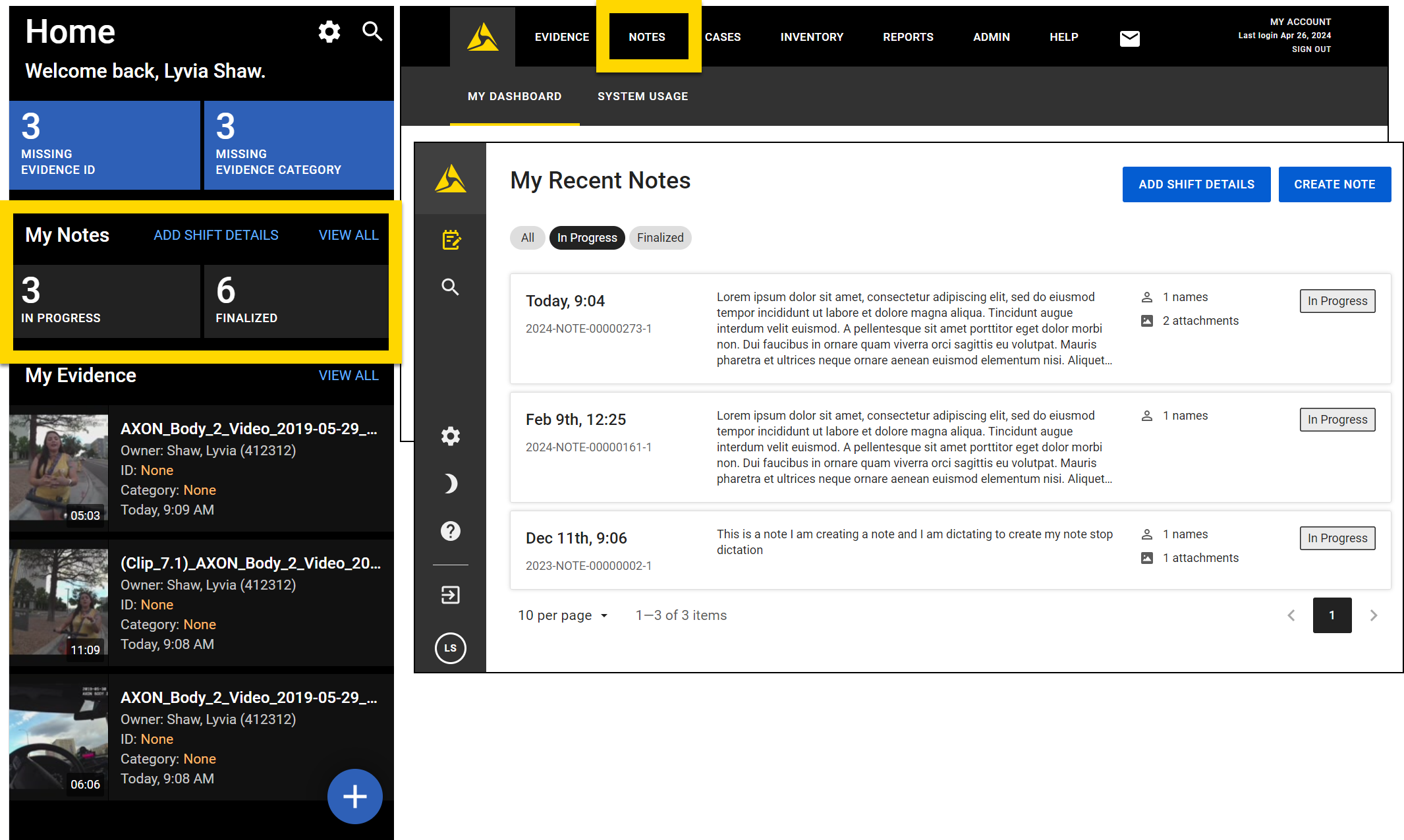
To access Notes on a mobile device, open the Axon app and in the My Notes section, select the In progress or Finalized buttons to view those notes with those statuses or View all to see all notes. To access Notes on a computer, log in to Axon Evidence and select Notes in the main navigation menu.
For more information about the other features in the Axon app, see the Axon app documentation.
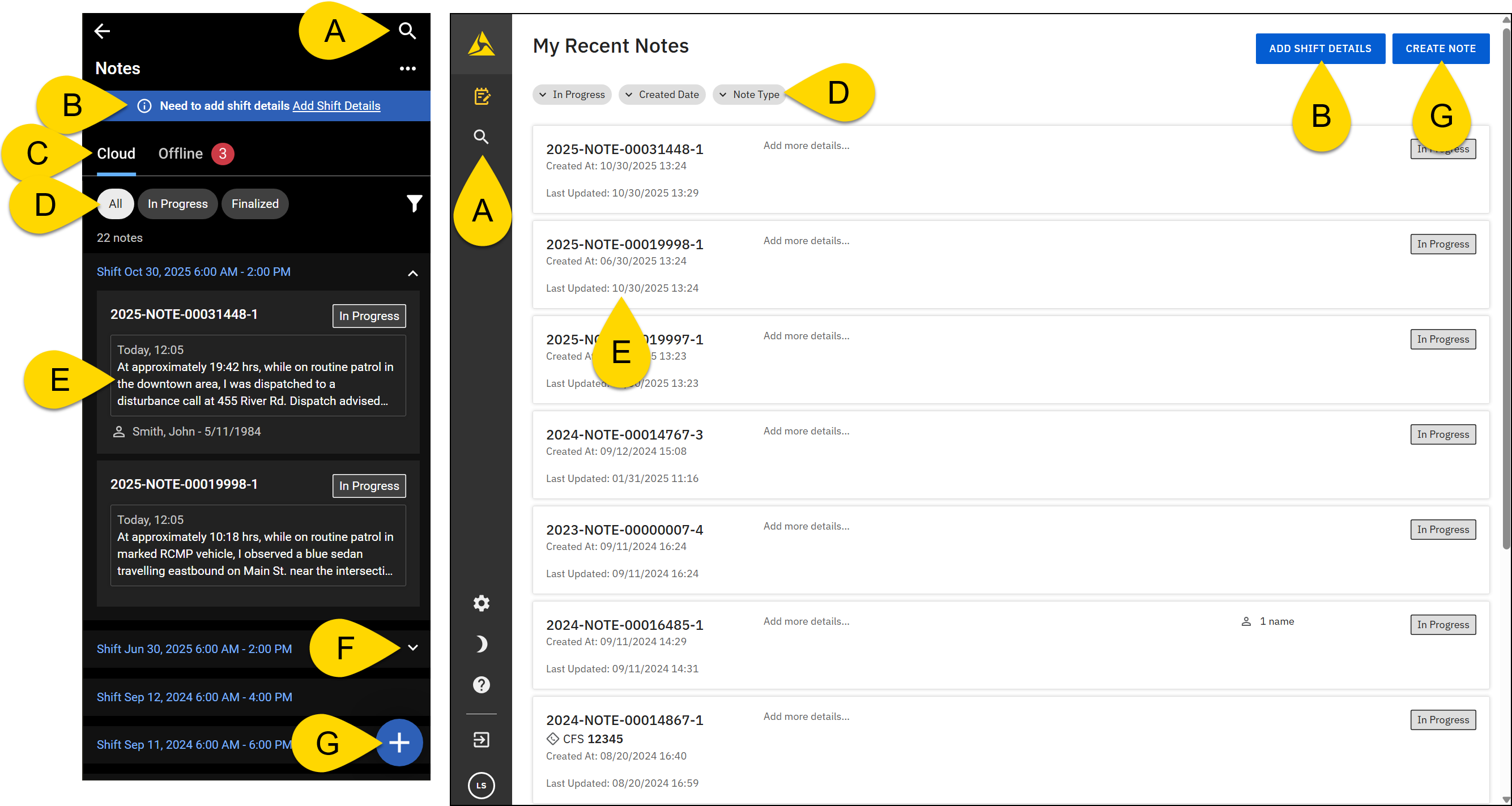
When viewing the Notes list, you can take the following actions:
- Select the magnifying glass to open search.
- Add shift details.
- On mobile, this option is also available on the app's Home screen.
- On mobile, use the tabs to switch between notes available on the cloud and those that have been edited offline but not yet synced to the cloud.
- Use the filters to set which notes appear in the list
- On mobile, use the filters buttons to show to All, In Progress, or Finalized notes, and the filter icon to view additional filters.
- On the computer, filter by note status, creation date, or note type.
- Select a note to open the note.
- On mobile, notes are grouped by shift. Select the arrow to expand or collapse all notes associated with that shift.
- Select the Plus icon > Create note (mobile) or Create note (computer) to start a new note.
- On mobile, this option is also available on the app's Home screen.
This video explains the interface of Axon Notes.
Privileges
The following privileges related to Notes appear in the Notes privilege category.
Within this categories, there are "static" privileges, as well as workflow privileges. Generally, the static privileges determine which buttons and options appear to users when they open a note. The workflow privileges determine which actions a user can take on a note, depending on its current state (Draft, Finalized, etc.).
|
Name |
Description |
Additional required privileges |
|---|---|---|
|
Create and edit notes |
Lets users create and edit notes. |
To use the Notes product, users must also have the following privileges: Users must also have the Create tasks workflow privilege to create a note. |
|
Create notes when offline |
Lets users create notes when they are offline |
|
|
Edit notes when offline |
Lets users edit notes when they are offline |
|
|
Manage notes forms, activity logs, and attachments |
Lets users manage note forms, activity logs, and attachments. |
|
|
Search for and view notes (no edit access) |
Lets users search for notes, but not edit them |
View tasks workflow privileges |
|
View notes (no edit access) |
Lets users view notes, but not edit them |
View tasks workflow privileges |
Once created, a note moves through a workflow that contains two states: Open → Closed. Shift details move through a separate two-step workflow. Each state in both workflows is associated with multiple privileges, which give you granular control over which users can take actions on a note, based on its current state.
The workflow privileges appear at the end of the category. Within the workflow subcategory, privileges are sorted by state. The hover tooltip for the Draft state - Create tasks privilege provides additional details about the workflow as a whole, and not just the Create tasks privilege.
|
Name |
Description |
Additional required privileges |
|---|---|---|
|
Create tasks States: Draft |
Lets users create and edit notes. |
To use the Notes product, users must also have the following privileges: Users must also have the Create and edit notes privilege to create a note. |
|
Submit tasks from the Open state States: Draft |
Lets users finalized notes. |
|
|
View tasks States: Draft, Finalized |
Lets users view notes. |
View notes (no edit access) |
|
Revert finalized reports
States: Draft, Finalized |
Lets users revert the finalization of notes. |
|
|
Add comments
States: Draft |
This privilege is inactive and can be ignored. |
|
|
Assign tasks to others
States: Draft |
This privilege is inactive and can be ignored. |
|
|
Assign tasks to themselves
States: Draft |
This privilege is inactive and can be ignored. |
|


