Expungements
Axon Records has two mechanisms for clearing information from a person's record:
- Sealing: Hiding information
- Expunging: Permanently deleting information
When sealing or expunging, you can hide/delete entire incidents or parts of the incident, such as PII, arrests, or charges. You can also seal or expunge standalone reports other than incident reports, such as Field Interviews, Citations, etc.
Both sealing and expunging can only be performed as mandated by a court order. Seals can be lifted (temporarily made visible) or removed entirely, but expunged information is permanently deleted and cannot be recovered.
If information instead needs to be hidden from general Axon Records users, rather than being cleared from a person's record, the restriction functionality should be used.
Expunging information permanently deletes that information from Axon Records. Like sealing, expunging can include an entire incident or report, or just specific sections like a person or vehicle.
Users must have specific privileges to expunge information. Actions related to expungements are tracked in the audit log.
An incident can only be expunged once all reports in the incident are finalized. Similarly, a standalone report must also be finalized before it can be expunged.
You can also expunge a booking directly from the Booking profile. See Booking expungement for more information.
Partial expungements
When you choose to expunge specific elements rather than the entire report, seals, restrictions, and flags remain in place for all information you choose to keep, only removing the ones pertaining to the expunged information.
Linked reports
To expunge a linked report, first unlink it from the incident, then open the unlinked report to perform the expungement. Keep in mind, the report you select the Expunge option from is the report that will be affected by the expungement.
To expunge information:
- Open the incident profile or report and select More actions [...] > Expunge.
- If a standalone report is linked to an incident, the Expunge option does NOT appear in the report's More actions menu. The report can instead be expunged from the incident profile.
- To expunge a booking, open the booking profile and select More actions [...] > Expunge.
- Enter a Court Order number.
- Use the checkboxes to select information to expunge (entire incident/document, people, vehicles, property ,etc.).
- The options include all people, vehicles, property items, etc. that have been added to all the reports associated with the incident.
- If you select a person, you can specify whether you want to expunge all information about the person, personally identifying information (PII), arrest information, or specific charges. PII includes a person's identity, aliases, identifying documents, and contact information.
- Select Next.
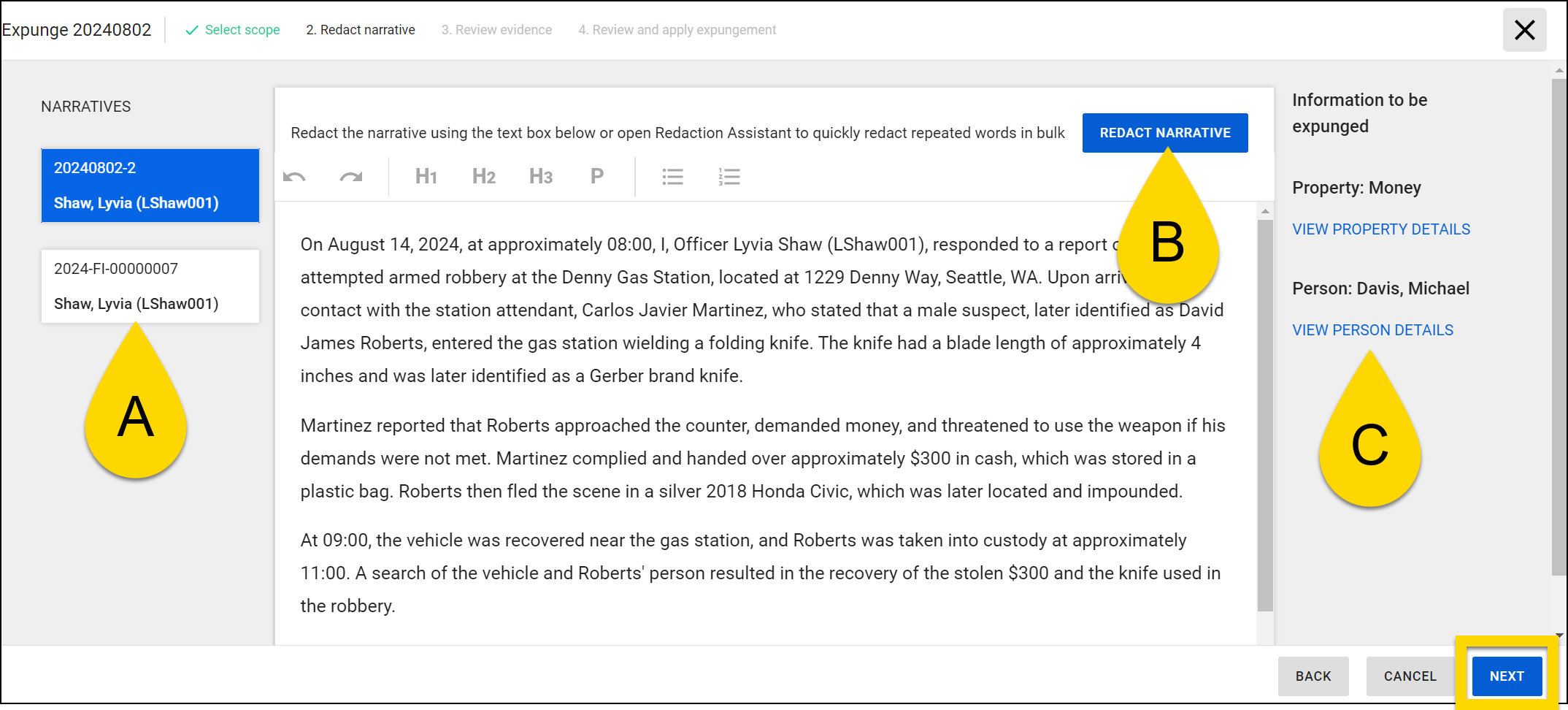
- Redact the narratives associated with the incident to remove all content related to the information you are expunging. When expunging an entire incident, this step does not appear because the entire incident, including all narrative text, will be expunged.
- If the incident contains multiple narratives, switch between them using the large blue and white buttons.
- Select Redact narrative to use the Redact Text tool to quickly redact text in bulk.
- View details links display on the right side of the window for each item you are expunging (person, property, vehicle, or organization). Select these links to open the profile for that item in a new tab.
- Select Next.
- Review digital evidence associated with the incident by selecting the blue View evidence link.
- The Files tab of the incident profile opens in a new browser tab where you can find all files associated with the incident.
- Select a file title to open Axon Evidence where you can review, redact, and delete as necessary.
- If the incident was shared with external partner agencies, select View sharing history to open Axon Evidence and contact the external partners about the expungement.
- For more information, see Case share overview.
- Review any physical evidence related to the expungement.
- When the expungement is submitted, the property custodian should be notified to destroy them
- Select Next.
- Review the information to be expunged and acknowledge the statements at the top of the screen by selecting the Acknowledge checkbox.
- Select Expunge permanently and confirm the expungement in the dialog box that appears.
- When expunging an entire incident for which a case has been created, all case documentation will also be deleted.
It may take up to 24 hours for the expungement process to complete. You can review the Expungement Log to view the status of an expungement.
If the last remaining association for an entity is expunged, the entire entity is removed from the database.
Redact Text tool
When expunging portions of an incident or report, you can quickly redact text that appears multiple times throughout a narrative (e.g., the name of a person). To open the tool, select Redact narrative.
When the tool opens, the text of the original narrative displays on the left, and the text of the redacted narrative displays on the right. The tool automatically suggests words that may need to be redacted. These words are highlighted in purple on the left, and the suggested text to replace these words is highlighted in green on the right.
Suggestions are based on the seal scope selected at the beginning of the expungement workflow. For example, if you select a person from the list, suggestions in the Redact Text tool automatically include all person names that appear in the narrative.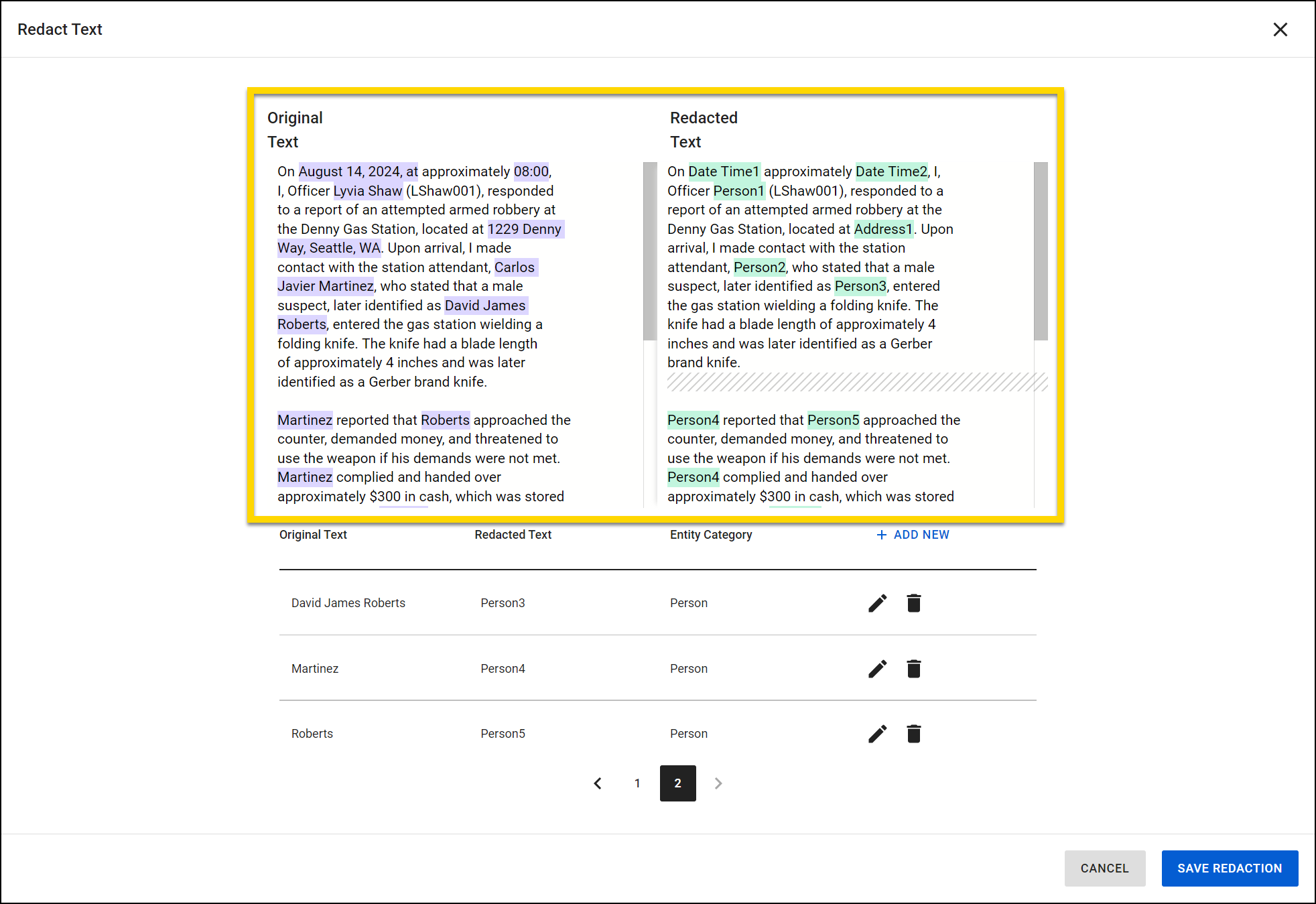
The table below the text summarizes each suggestion:
- Original text: The text that appears in the original narrative
- Redacted text: The text that will be expunged
- Entity category: The type of text. Options include:
- Address
- Age
- Bank Account Number
- Date Time
- Drivers License Number
- Individual Taxpayer Identification
- Officer
- Organization
- Person
- Phone Number
- Social Security Number
- Subject
- Witness
Select the pencil icon  to edit the suggestion or the trash can icon
  to remove it.
To create a new redaction item, select Add new.
After completing all redactions, select Save redaction at the bottom of the screen to return to the expungement workflow.
Audit log
The following expungement events appear in the user audit log:
- Create Expungement Partial Incident
- Create Expungement
Each event includes the following information:
- User who took the action
- Date and time the action was taken
- Report or Incident ID
- Court Order Number
Additionally, an expungement event appears in the log whenever a user views the Expungements Log in the Administrator Console:
- Search Expungements
For more information about accessing audit logs, see Audit Log Tool.


